Check the clouds
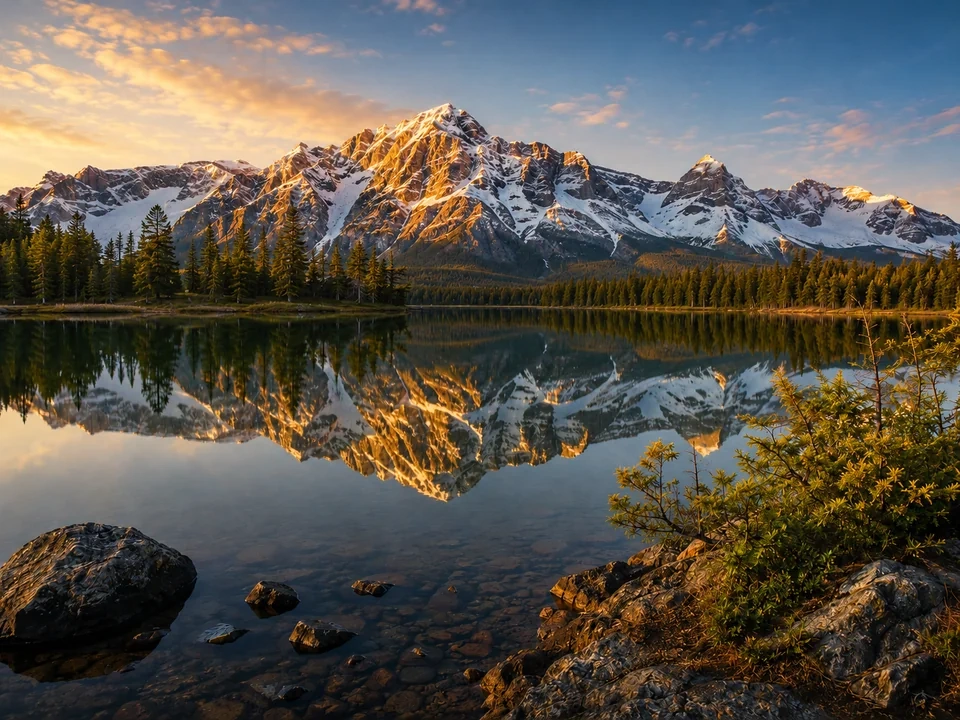
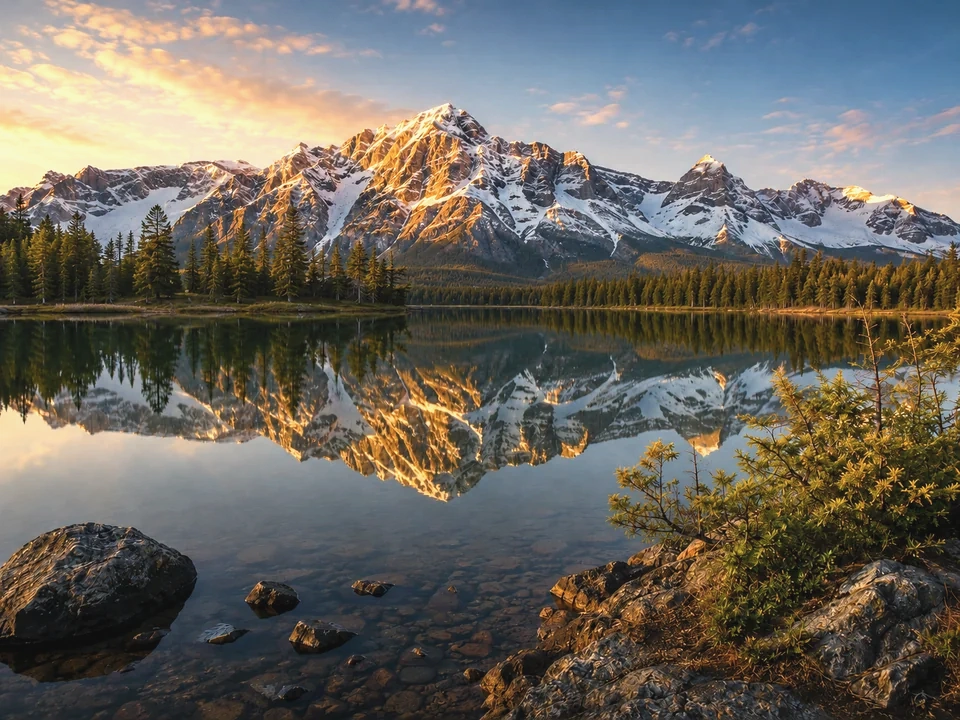
The bright clouds on the left should keep their shape, not turn into one pale patch.
Watch the snow
The snow on the peaks and in the reflection should stay readable, not flat white or dull gray.
Look at the dark areas
The tree line, foreground rocks, and right-side bushes can open up, but they should not look washed out.
How to use it
Run highlights and shadows review in this order
Use the mountain lake example
Start with the reference image on this page. The same checks apply when you compare a similar landscape edit.
- In this example, the left clouds and peak snow are the highlight checks.
- The tree line, foreground rocks, right-side bushes, and dark water are the shadow checks.
- The lake reflection should still match the mountain and sky above it.
Move highlights and shadows in small steps
Highlights and shadows change what you can see in bright and dark parts. Small moves make it easier to keep the sunset sky bright without flattening the forest.
- Lower highlights a little if the clouds or sunlit snow are too bright.
- Raise shadows a little if the trees, rocks, or bushes are too hard to read.
- Use a smaller move if the sky gets flat or the forest starts looking gray.
Use the slider on important areas
Drag across the parts people read first, then check the areas most likely to break.
- Drag across the bright clouds and the snow on the main peak.
- Move across the tree band and its reflection in the lake.
- Check the foreground rocks and right-side bushes before keeping the edit.
Read the result cards
The cards summarize the size and direction of the change. Look back at the preview to judge the visible result.
- If highlights show a big change, go back to the clouds and snow.
- If shadows show a big change, go back to the tree line, rocks, and bushes.
- Keep the edit only if the lake reflection still looks like the same scene.
Examples
Common highlights and shadows fixes
Clouds lose shape
The sky looks brighter, but the cloud shapes near the left side start blending together.
- Use a smaller highlights move.
- Check the golden cloud edge against the blue sky.
- Look at the snow on the peak again.
The sky can stay bright, but the cloud shapes should still be visible.
Trees turn gray
The forest band and right-side bushes become easier to see, but they stop feeling shaded.
- Use a smaller shadows move.
- Check the tree line above the lake.
- Compare the foreground rocks before keeping the result.
Dark areas should open up without losing depth.
Reflection stops matching
The mountain looks good above the water, but the reflected snow and trees feel different.
- Drag the slider through the lake reflection.
- Compare reflected snow, dark water, and tree shapes.
- Check the mountain above the water again.
The reflection should still feel like the same mountain and sky.
Result checks
What to inspect after highlights and shadows changes
Sky and clouds
Check the bright clouds on the left and the blue sky above the peaks.
Snow on the peaks
Check the sunlit ridges, shaded snow, and small white patches.
Trees and bushes
Check the dark tree band, right-side bushes, and their reflection in the lake.
Rocks and water
Check the foreground rocks, shallow water stones, and reflected mountain detail.
Highlights / Shadows effects
What highlights and shadows changes
Lower highlights
- Bright clouds, snow, and reflected white areas become easier to read.
- Use it if the sky or snow is too bright.
- Check cloud shape, snow ridges, and lake reflection.
Raise shadows
- Dark trees, rocks, bushes, and water edges become more visible.
- Use it if shaded areas hide useful detail.
- Check the forest band, foreground rocks, and right-side bushes.
Cloud shape
- Bright clouds can lose their edges when highlights are pulled too far.
- Reduce highlights if the left-side clouds start blending together.
- Check the cloud edge against the blue sky and sunlit snow.
Tree line
- Dark trees can turn gray when shadows are lifted too far.
- Reduce shadows if the forest stops looking shaded.
- Check the tree band, rocks, dark water, and right-side bushes.
Decisions
How to act on the highlights and shadows result
Sky and dark areas both hold detail
Keep the edit if the clouds, snow, trees, rocks, and reflection all stay believable.
Sky flattens or shadows gray out
Reduce the move if clouds lose shape, snow turns dull, or the forest looks washed out.
The whole photo is still too bright or dark
Use exposure or levels if the whole mountain scene needs a broader light change.
Common issues
What can make highlights and shadows review misleading
Clouds lose their edges
The edited sky may look better at first while the left-side clouds start blending together.
Trees look washed out
The forest and rocks may seem clearer, but the shaded areas can turn weak or gray.
The lake reveals mismatches
Reflected snow, trees, and clouds make it easier to see if the reflection no longer matches the scene above it.
Sunset light disappears
Reducing the bright areas too much can take the warm evening glow out of the clouds and snow.
Try it